
Building an AI-Powered PDF Report Designer in Oracle APEX
A practical step-by-step walkthrough of how we built an Oracle APEX prototype that turns a SQL query and a plain English request into an AI-designed PDF report.

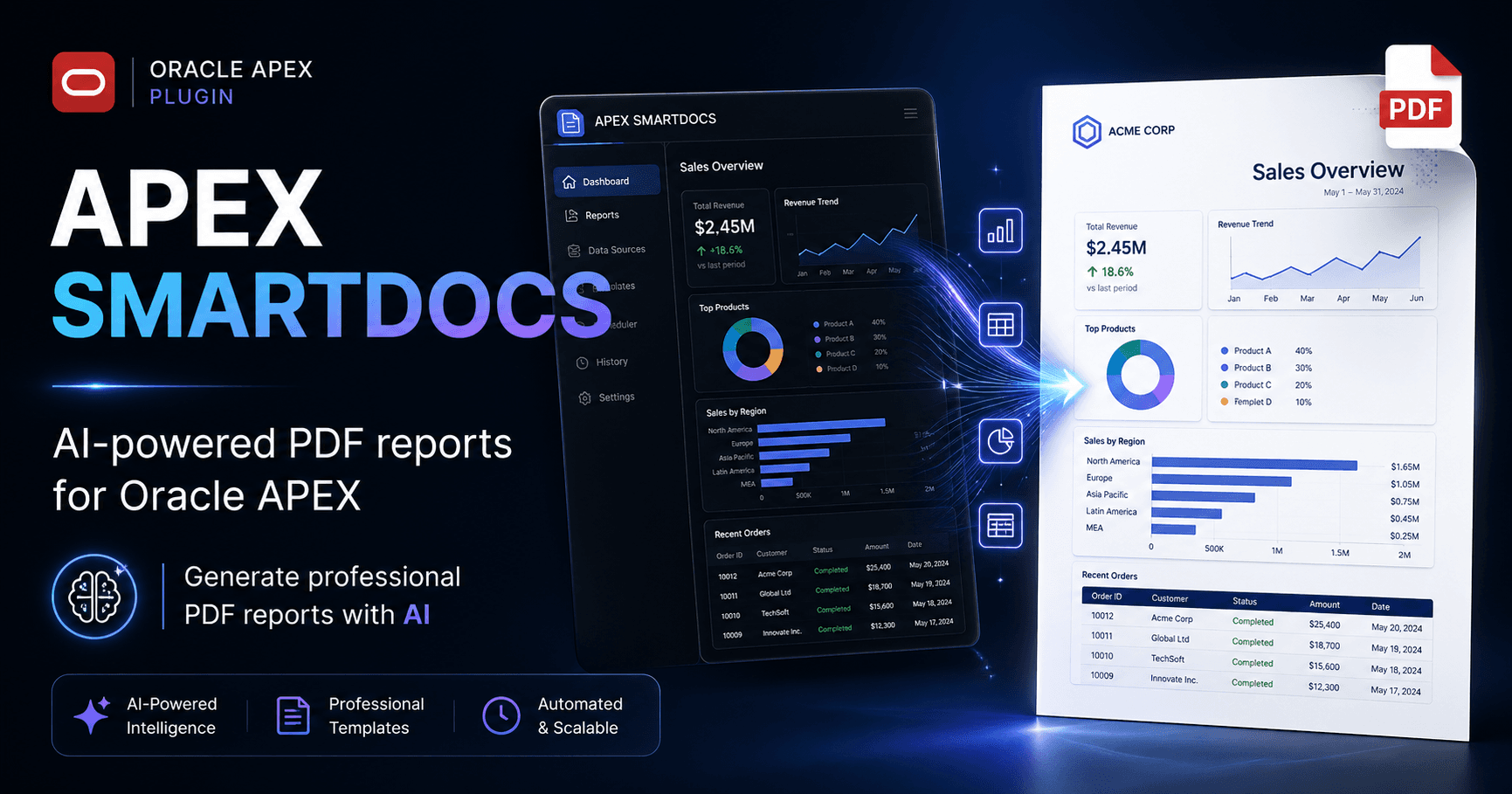
Oracle APEX is already excellent for building data applications quickly. Forms, dashboards, workflows, and interactive reports can be built faster than with most traditional stacks.
But there is one task where users still leave the application: creating polished, management-ready PDF reports. They export data, format it in Excel, copy screenshots into PowerPoint, or paste sensitive data into an external AI chat tool just to make the output look presentable.
This prototype was built to test a different workflow: keep the user inside APEX, keep the data close to the database, and use AI only to design the final report document.
01What we wanted to build
The target flow is simple. The user writes a SQL query, writes a report request in English, selects an AI provider, and clicks generate. APEX validates the query, sends a compact data context to the provider, receives printable HTML and CSS, renders the result, and lets the user download it as a PDF.
The important part is that the report is not drawn by a fixed renderer. The AI is asked to design the document based on the user request and the shape of the data.
02Step 1: create the APEX page
Create a new blank page in Oracle APEX. In this prototype, I used page 40 and named it AI Document Designer.
Build the page in this order:
- 01Create a blank page or a normal page with no report region generated by the wizard.
- 02Add an AI Settings region for provider, model, and API key.
- 03Add a Report Request region for the SQL query, the natural-language prompt, and max rows.
- 04Add a Static Content region for progress and preview.
- 05Add the Generate and Download PDF buttons.
- 06Add the AJAX callbacks under Processing.
- 07Add the JavaScript controller to Page JavaScript > Execute when Page Loads.
03Step 2: add the page items
These are normal APEX page items. They are shown as a setup table here because the important details are the item name, item type, and where the value is used.
For P40_AI_PROVIDER, use this static LOV:
Groq;GROQ
OpenAI;OPENAI
Anthropic;ANTHROPIC
Google Gemini;GOOGLE04Step 3: install the PL/SQL package
The backend package is the real engine of the prototype. It validates the SQL, extracts metadata, reads a limited row sample, builds the provider-specific payload, sends the request, extracts the response, validates the HTML, and returns it to the page.
Install the package before you create the AJAX callbacks, because both callbacks call AI_DOC_DESIGNER_PKG.
Download the full package source here: AI_DOC_DESIGNER_PKG package source
function describe_query_json(p_sql in clob) return clob;

function query_data_json(
    p_sql in clob,
    p_max_rows in number default 200
) return clob;

function validate_report_html(p_html in clob) return varchar2;

function generate_report_html(
    p_sql in clob,
    p_question in varchar2,
    p_max_rows in number default 200,
    p_provider in varchar2 default 300">'GROQ',
    p_model in varchar2 default null,
    p_api_key in varchar2 default null
) return clob;
The package has four public functions:
This function validates the query and describes the result columns with DBMS_SQL. It gives the AI column names, order, data types, precision, and scale before any report design happens.
This function runs the query with a row limit and converts the returned rows into compact JSON. The goal is to give the model enough data context without sending the entire dataset.
This function checks the HTML returned by the AI before rendering it. It requires the root element id="ai-doc-report" and blocks unsafe tags, event handlers, JavaScript URLs, and external resources.
This is the main function. It validates the SQL, prepares metadata and sample data, builds the prompt, sends the request to the selected provider, extracts the provider response, validates the HTML, and returns the final report.
05Step 4: support the four AI providers
This part belongs in the package, not in the browser. The browser should not know how every provider builds its payload. It should only send the selected provider, the model, and the API key.
The package then chooses the endpoint, headers, request body, and response path.
This is also why I removed the custom endpoint idea from the prototype. Custom endpoints sound flexible, but they quickly turn into a support problem because every provider behaves slightly differently.
06Step 5: create the progress and preview region
Add a Static Content region to the page. This region holds the progress box and the preview container where the AI-generated report will be injected.
Put the following HTML inside the Static Content region source:
<"text-sky-300">class="text-sinai-glow-orange font-semibold">div "text-sky-300">id="aiDocProgressBox" "text-sky-300">style="display:none; margin:16px 0; padding:16px; border:1px solid #dbeafe; border-radius:14px; background:#eff6ff; font-family:Inter,Arial,sans-serif;">
  <"text-sky-300">class="text-sinai-glow-orange font-semibold">div "text-sky-300">style="display:flex; justify-content:space-between; align-items:center; gap:16px; margin-bottom:10px;">
    <"text-sky-300">class="text-sinai-glow-orange font-semibold">strong "text-sky-300">id="aiDocProgressTitle" "text-sky-300">style="color:#0f172a;">Preparing report...</"text-sky-300">class="text-sinai-glow-orange font-semibold">strong>
    <"text-sky-300">class="text-sinai-glow-orange font-semibold">span "text-sky-300">id="aiDocProgressPercent" "text-sky-300">style="color:#1d4ed8; font-weight:700;">0%</"text-sky-300">class="text-sinai-glow-orange font-semibold">span>
  </"text-sky-300">class="text-sinai-glow-orange font-semibold">div>

  <"text-sky-300">class="text-sinai-glow-orange font-semibold">div "text-sky-300">style="height:12px; background:#dbeafe; border-radius:999px; overflow:hidden;">
    <"text-sky-300">class="text-sinai-glow-orange font-semibold">div "text-sky-300">id="aiDocProgressBar" "text-sky-300">style="height:12px; width:0%; background:linear-gradient(90deg,#2563eb,#16a34a); border-radius:999px; transition:width .35s ease;"></"text-sky-300">class="text-sinai-glow-orange font-semibold">div>
  </"text-sky-300">class="text-sinai-glow-orange font-semibold">div>

  <"text-sky-300">class="text-sinai-glow-orange font-semibold">div "text-sky-300">id="aiDocProgressMessage" "text-sky-300">style="margin-top:10px; color:#334155; font-size:13px;">Waiting...</"text-sky-300">class="text-sinai-glow-orange font-semibold">div>
</"text-sky-300">class="text-sinai-glow-orange font-semibold">div>

<"text-sky-300">class="text-sinai-glow-orange font-semibold">div "text-sky-300">id="aiDocPreview"></"text-sky-300">class="text-sinai-glow-orange font-semibold">div>
Then add the progress animation CSS in Page Designer → Page → CSS → Inline. This location matters; if you put it in the wrong place, the indeterminate animation will not run.
#aiDocProgressBox.is-indeterminate #aiDocProgressBar {
    width: 35%;
    animation: aiDocIndeterminate 1.2s ease-in-out infinite;
}

@keyframes aiDocIndeterminate {
    0% { margin-left: -35%; }
    50% { margin-left: 45%; }
    100% { margin-left: 100%; }
}
The progress bar is intentionally honest. During the actual AI call, the browser does not know if the provider is 40% or 70% done. So the bar switches to an indeterminate state instead of showing a fake percentage.
07Step 6: add the buttons
Add two APEX buttons. This is configuration, not code. The important part is the button name, static ID, and action.
- 01Create a button named GENERATE_AI_DOCUMENT.
- 02Set its Static ID to GENERATE_AI_DOCUMENT.
- 03Set Action to Defined by Dynamic Action, but do not create an APEX Dynamic Action for it.
- 04Create another button named DOWNLOAD_PDF.
- 05Set its Static ID to DOWNLOAD_PDF.
- 06Set Action to Defined by Dynamic Action, but let the JavaScript controller handle the click.
The reason is simple: the page uses one JavaScript controller instead of APEX Dynamic Actions. That kept the flow easier to control and avoided runtime issues with generated dynamic action code.
08Step 7: create the AJAX callbacks
Create both callbacks under Page Designer → Processing → Ajax Callback.
- 01Create the first AJAX Callback and name it AI_DOC_PRECHECK.
- 02Paste the precheck PL/SQL code below.
- 03Create the second AJAX Callback and name it AI_DOC_GENERATE_HTML.
- 04Paste the generation PL/SQL code below.
- 05Make sure both callbacks are on the same APEX page as the JavaScript controller.
AI_DOC_PRECHECK validates the query and confirms that metadata and a sample can be prepared. It does not call the AI provider.
declare
    l_metadata clob;
    l_sample   clob;
    l_json     clob;

    procedure print_clob(
        p_clob in clob
    ) is
        l_pos   number := 1;
        l_len   number;
        l_chunk varchar2(32767);
    begin
        if p_clob is null then
            return;
        end if;

        l_len := dbms_lob.getlength(p_clob);

        while l_pos <= l_len loop
            l_chunk := dbms_lob.substr(p_clob, 32767, l_pos);
            htp.prn(l_chunk);
            l_pos := l_pos + 32767;
        end loop;
    end;
begin
    l_metadata := ai_doc_designer_pkg.describe_query_json(
        p_sql => :P40_SQL_QUERY
    );

    l_sample := ai_doc_designer_pkg.query_data_json(
        p_sql      => :P40_SQL_QUERY,
        p_max_rows => 5
    );

    apex_json.initialize_clob_output;
    apex_json.open_object;
    apex_json.write(300">'success', true);
    apex_json.write(300">'message', 300">'SQL validated and sample data prepared.');
    apex_json.close_object;

    l_json := apex_json.get_clob_output;
    apex_json.free_output;

    print_clob(l_json);
exception
    when others then
        apex_json.initialize_clob_output;
        apex_json.open_object;
        apex_json.write(300">'success', false);
        apex_json.write(300">'error', sqlerrm);
        apex_json.close_object;

        l_json := apex_json.get_clob_output;
        apex_json.free_output;

        print_clob(l_json);
end;
AI_DOC_GENERATE_HTML calls the package, passes the provider settings from x01, x02, and x03, and returns the generated HTML to the browser.
declare
    l_html clob;

    procedure print_clob(
        p_clob in clob
    ) is
        l_pos   number := 1;
        l_len   number;
        l_chunk varchar2(32767);
    begin
        if p_clob is null then
            return;
        end if;

        l_len := dbms_lob.getlength(p_clob);

        while l_pos <= l_len loop
            l_chunk := dbms_lob.substr(p_clob, 32767, l_pos);
            htp.prn(l_chunk);
            l_pos := l_pos + 32767;
        end loop;
    end;
begin
    l_html := ai_doc_designer_pkg.generate_report_html(
        p_sql       => :P40_SQL_QUERY,
        p_question  => :P40_QUESTION,
        p_max_rows  => nvl(to_number(:P40_MAX_ROWS), 50),
        p_provider  => apex_application.g_x01,
        p_model     => apex_application.g_x02,
        p_api_key   => apex_application.g_x03
    );

    print_clob(l_html);
end;09Step 8: add the JavaScript controller
Add the JavaScript controller in Page Designer → Page → JavaScript → Execute when Page Loads. The controller reads the AI settings, calls the two callbacks, updates the progress UI, injects the returned HTML into #aiDocPreview, and handles the PDF download button.
Download the full JavaScript controller here: JavaScript controller source
- 01 Read
P40_AI_PROVIDER,P40_AI_MODEL, andP40_AI_API_KEY. - 02 Call
AI_DOC_PRECHECKwith the SQL query, question, and max rows. - 03 If precheck succeeds, switch the progress bar to indeterminate mode.
- 04 Call
AI_DOC_GENERATE_HTMLwith provider, model, and API key as AJAX parameters. - 05 Insert the generated HTML into
#aiDocPreview. - 06 Export
#ai-doc-reportto PDF when the user clicks Download PDF.
The API key is not submitted as a normal stored page setting. It is sent as x03 during the AJAX request.
10Step 9: export the generated report to PDF
The prototype uses html2canvas and jsPDF for browser-side PDF export. Add these libraries in Page Designer → Page → JavaScript → File URLs.
https://cdnjs.cloudflare.com/ajax/libs/html2canvas/1.4.1/html2canvas.min.js
https://cdnjs.cloudflare.com/ajax/libs/jspdf/3.0.3/jspdf.umd.min.js
One important lesson: some AI-generated CSS can look perfect in the browser but break canvas rendering. Complex gradients are a good example. To avoid changing the visible report, the export function creates a temporary clone, cleans only the canvas-breaking styles from that clone, and then exports it.
11Step 10: test it with EMP and DEPT
This query is a good test because it contains departments, employees, jobs, salary, hire dates, and locations. That gives the AI enough structure to produce a real document instead of a flat table.
select
    d.deptno,
    d.dname,
    d.loc,
    e.empno,
    e.ename,
    e.job,
    e.mgr,
    e.hiredate,
    e.sal,
    e.comm
from dept d
left join emp e
    on e.deptno = d.deptno
order by
    d.deptno,
    e.job,
    e.sal desc nulls last,
    e.ename
Use this report request for a strong result:
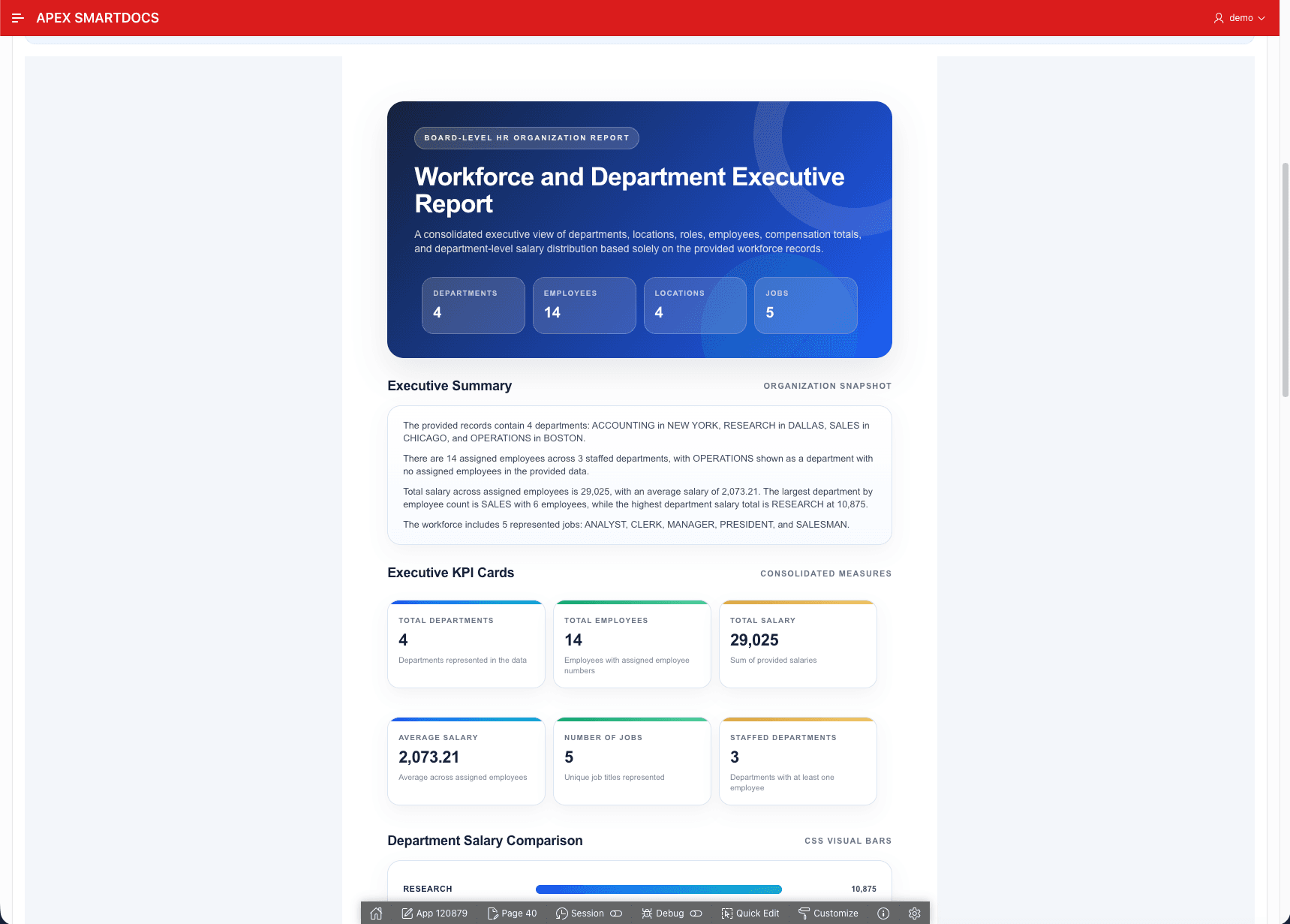
Create a premium board-level workforce and department PDF report from this data.

This report must combine departments and employees into one executive document. Do not create a flat database table.

Design the report as a polished HR and organization structure report grouped by department.

Mandatory structure:
1. Premium executive cover/header.
2. Executive summary based only on the provided data.
3. KPI cards for total departments, total employees, total salary, average salary, and number of jobs.
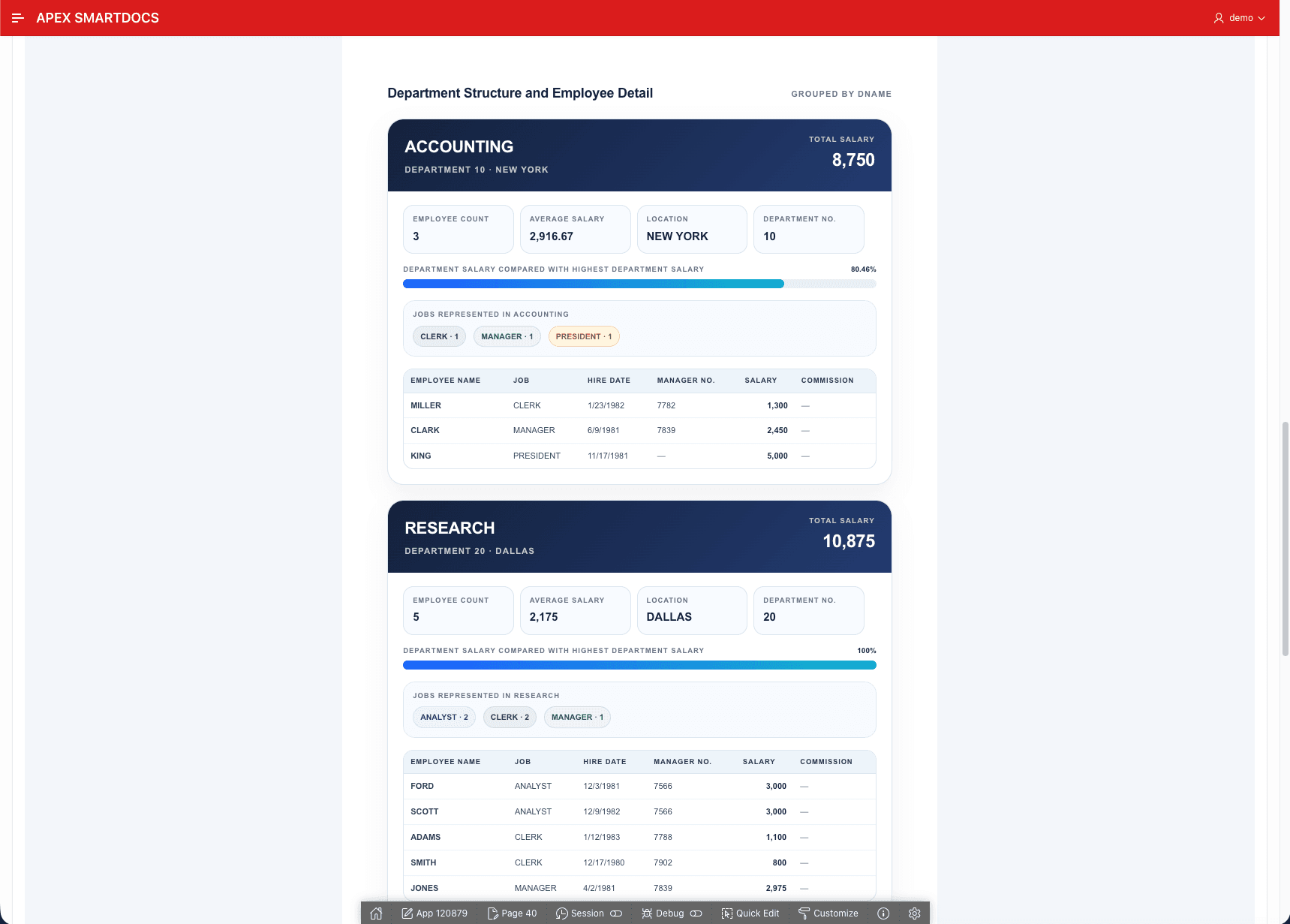
4. Department sections grouped by DNAME.
5. Each department section must show department name, department number, location, employee count, total salary, average salary, and jobs represented in that department.
6. Under each department, show employee details including employee name, job, hire date, manager number, salary, and commission if available.
7. Add CSS-only visual salary bars comparing departments.
8. Add CSS-only job distribution or job badges inside each department.
9. Use cards, badges, visual hierarchy, spacing, section dividers, and strong colors.
10. Make it A4 print-ready and suitable for PDF export.

Important rules:
- Use only the provided data.
- Do not invent values.
- Do not output a simple flat table.
- Do not group by JOB first. The primary grouping must be by department.
- If a department has no employees, still show the department section and clearly indicate that no employees are assigned.
- Make the final result look like a professionally designed board-level HR report, not a SQL query export.12Result screenshots
These screenshots show the type of result the prototype produced from the APEX page. The report is not a normal database export; it is a designed document generated from the SQL result and the user prompt.
13Try the live demo
The live demo is available on Oracle APEX. Use the credentials below to open the application and test the AI document designer page.
Demo Login

URL: https://oracleapex.com/ords/r/ai/apex-smartdocs/ai-document-designer
Username: demo
Password: Demo@_12314Why there is no fallback report
I deliberately avoided fallback reports. If the AI fails, the system should show the real failure. If the returned HTML is unsafe, it should be blocked. But the application should not silently replace a failed AI design with a plain table and pretend the generation worked.
The rule is simple: valid AI report or clear error. No fake rescue report.
15What worked well
The result was much better once the prompt became specific. Instead of asking for a generic report, the prompt asked for department grouping, KPI cards, salary summaries, job badges, visual bars, and an A4 print-ready layout.
That is the difference between a slightly formatted table and a designed document.
16What should come next
This is still a prototype. The next serious improvements would be server-side PDF export, stronger HTML sanitization, saved report designs, report history, optional encrypted API key storage, and packaging the whole thing as an Oracle APEX plug-in.